Lab 1.3 – Review/Set Device Settings
Your BIG-IP-A device is already licensed, so now we can focus on configuring the basic infrastructure related settings to complete the Device Onboarding process. The remaining items include (list not exhaustive):
- Device Settings
- NTP/DNS Settings
- Remote Authentication
- Hostname
- Admin Credentials
- L1-3 Networking
- Physical Interface Settings
- L2 Connectivity (VLAN, VXLAN, etc.)
- L3 Connectivity (Self IPs, Routing, etc.)
- HA Settings
- Global Settings
- Config Sync IP
- Mirroring IP
- Failover Addresses
- CMI Device Trusts
- Device Groups
- Traffic Groups
- Floating Self IPs
- Global Settings
We will specifically cover the items in BOLD above in the following labs. It should be noted that many permutations of the Device Onboarding process exist due to the nature of customer environments. This class is designed to teach enough information so that you can then apply the knowledge learned and help articulate and/or deliver a specific solution for your environment.
Task 1 – Set Device Hostname & Disable GUI Setup Wizard
In this task we will modify the device hostname and disable the GUI
Setup Wizard. The Resource that contains these settings is
/mgmt/tm/sys/global-settings.
Perform the following steps to complete this task:
- Expand the “Lab 1.3 – Review/Set Device Settings” folder in the Postman collection
- Click the “Step 1: Get System Global-Settings” item. Click the ‘Send’ button and review the response body to see what the current settings on the device are.
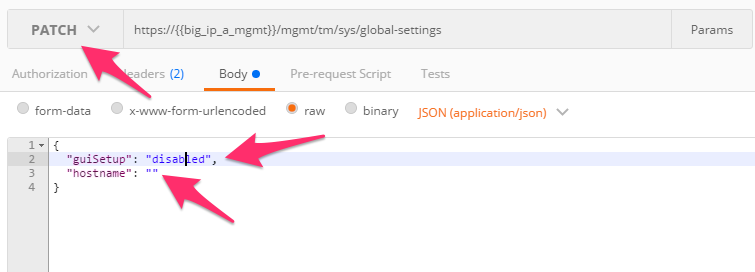
- Click the “Step 2: Set System Global-Settings” item. This item uses
a PATCH request to the
global-settingsresource to modify the attributes contained within it. We will update theguiSetupandhostnameattribute.- Review the JSON body and modify the ‘hostname’ attribute to set the
hostname to
bigip-a.f5se.local - Also notice that we are disabling the GUI Setup Wizard as part of
the same request:
- Review the JSON body and modify the ‘hostname’ attribute to set the
hostname to
- Click the ‘Send’ button and review the response body. You should see that the attributes modified above have been updated. You can also GET the global-settings again to verify they have been updated.
Task 2 – Modify DNS/NTP Settings
Much like the previous task we can update system DNS and NTP settings by sending a PATCH request to the correct resource in the ‘sys’ Organizing Collection. The relevant Resources for this task are:
| URL | Type |
|---|---|
/mgmt/tm/sys/dns |
DNS Settings |
/mgmt/tm/sys/ntp |
NTP Settings |
Perform the following steps to complete this task:
- Click the “Step 3: Get System DNS Settings” item in the collection. Click ‘Send’ and review the current settings
- Click the “Step 4: Set System DNS Settings” item in the collection.
Modify the JSON body to add a name server with IP ‘4.2.2.2’.
Additionally add a search domain of ‘f5se.local’. You will modify a
JSON array for both of these attributes. The format of a JSON array
is:
“myAttribute”: [ “item1”,”item2”,”item3” ] - Click the ‘Send’ button and verify the requested changes were successfully implemented
- Click the “Step 5: Get System NTP Settings” item in the collection. Click ‘Send’ and review the current settings
- Click the “Step 6: Set System NTP Settings” item in the collection. Modify the JSON body to add a NTP server with hostname ‘pool.ntp.org’ to the ‘servers’ attribute (another JSON array!)
- Click the ‘Send’ button and verify the requested changes were successfully implemented
Task 3 – Update default user account passwords
In this task we will update the passwords for the ‘root’ and ‘admin’ accounts. The process for updating the root account is different then other system accounts due to the special nature of the root account.
To update the root account password we will use a POST to a shared REST
worker at /mgmt/shared/authn/root
To update all other system accounts we will PATCH the
/mgmt/auth/user/<username> Resource
Perform the following steps to change the root user password:
Click the “Step 7: Set root User Password” item in the collection.
Notice that we a performing a POST operation to a shared REST worker. Modify the JSON body to update the password to the value “newdefault” and click the ‘Send’ button.
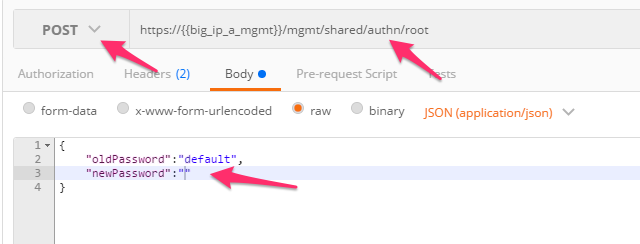
You can verify the password was changed by opening an SSH session using PuTTY to BIG-IP-A.
Repeat the procedure above to change the password back to “default”
Perform the following steps to change the admin user password:
Click the “Step 8: Set admin User Password” item in the collection.
Notice that we a performing a PATCH operation to admin user Resource. Modify the JSON body to update the password to the value “newadmin” and click the ‘Send’ button.
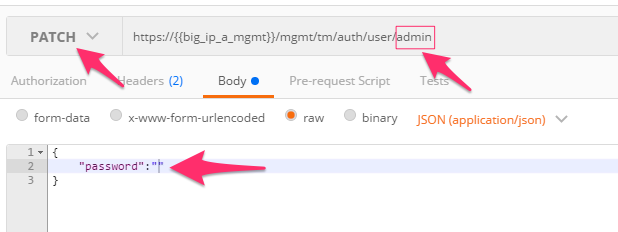
You can verify the password was changed by opening an SSH session using PuTTY to BIG-IP-A OR by logging into TMUI in a Chrome browser tab.
Repeat the procedure above to change the password back to “admin”